Startup Items
Manage applications and services that launch automatically when you log in.
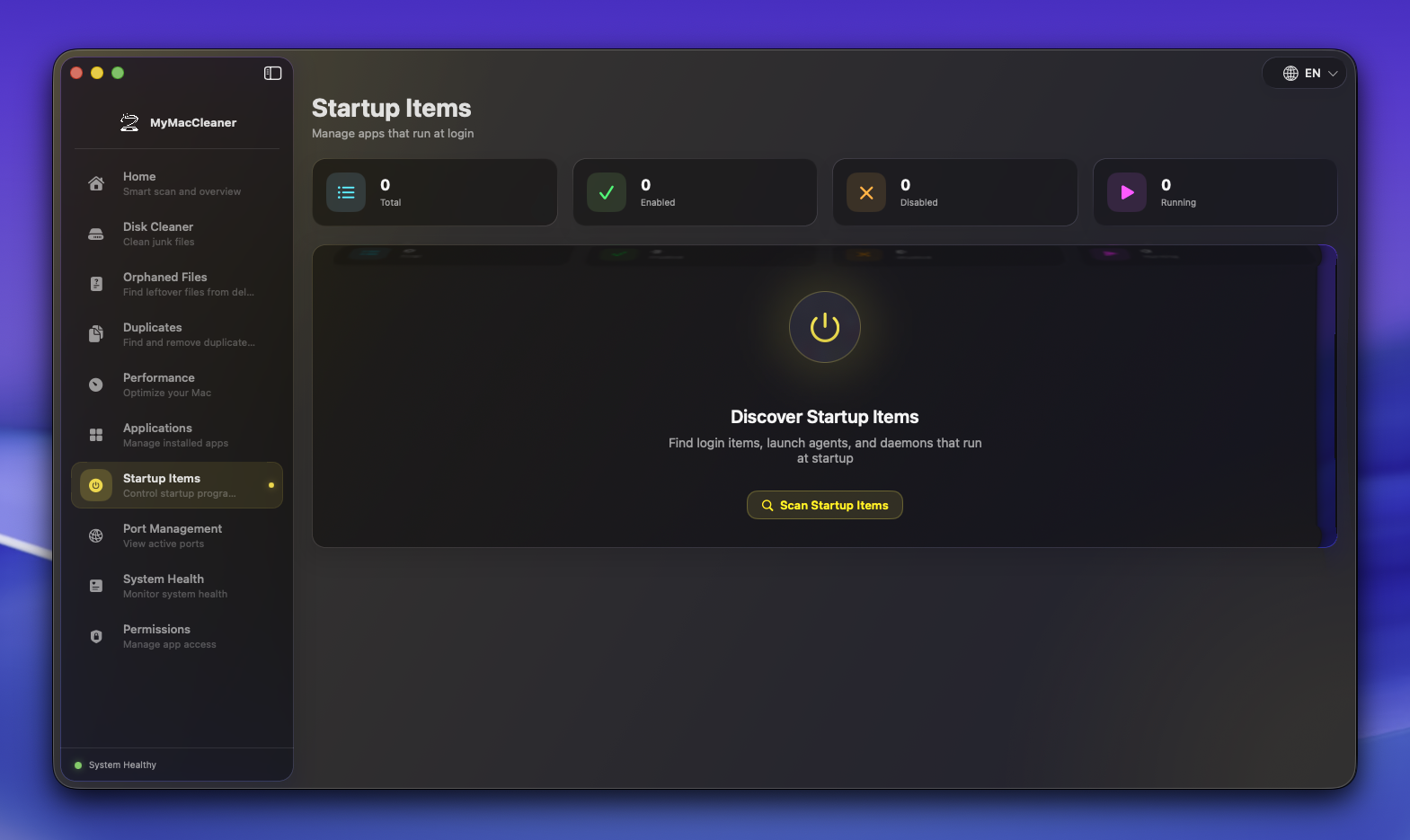 Startup Items ready to discover login items and launch agents
Overview
Startup Items helps you control what runs when your Mac starts, improving boot time and reducing resource usage.
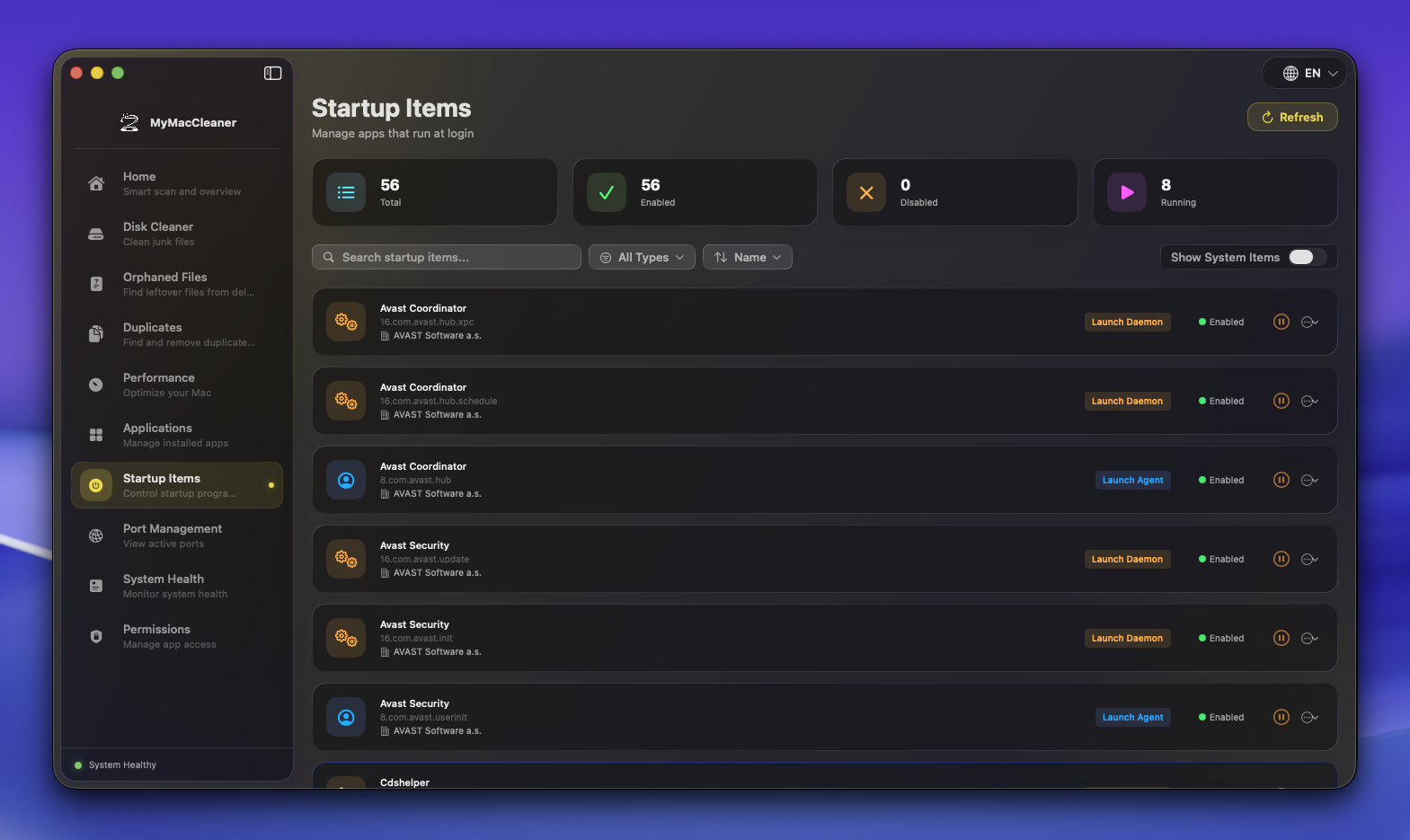 Complete list of startup items with enable/disable controls
Quick Stats
The dashboard shows four key metrics:
| Stat | Description |
|---|---|
| Total | Number of user startup items |
| Enabled | Items that will run at login |
| Disabled | Items currently turned off |
| Running | Items currently active |
Types of Startup Items
Login Items
Apps configured to open at login via System Settings.
| Property | Value |
|---|---|
| Location | System Settings > General > Login Items |
| Scope | Current user |
| Control | Enable/Disable via toggle |
User LaunchAgents
Background services for the current user.
| Property | Value |
|---|---|
| Location | ~/Library/LaunchAgents |
| Scope | Current user |
| Format | Property list (.plist) files |
System LaunchAgents
Background services for all users.
| Property | Value |
|---|---|
| Location | /Library/LaunchAgents |
| Scope | All users |
| Requires | Admin privileges to modify |
System Items
Apple system services (read-only).
| Property | Value |
|---|---|
| Location | /System/Library/LaunchAgents |
| Scope | System-wide |
| Control | Cannot be modified |
Interface Features
Search & Filter
- Search - Find items by name or identifier
- Type Filter - Show only specific item types
- Sort Order - Sort by name, status, or type
- Show System Items - Toggle visibility of Apple system items
Item Information
Each item displays:
| Info | Description |
|---|---|
| Name | Display name or filename |
| Label | Bundle identifier or plist name |
| Developer | Vendor (when detectable) |
| Type | Login Item, LaunchAgent, etc. |
| Status | Enabled or Disabled |
| Running | Green dot if currently active |
Expanded Details
Click any item to see:
- Full file path
- Executable path
- Bundle identifier
- Additional metadata
Managing Items
Enable/Disable
- Find the item in the list
- Click the play/pause button
- Confirm the action
- Item state updated
Note: Changes take effect at next login.
Remove Item
- Find the item in the list
- Click the ellipsis menu (…)
- Select “Remove”
- Confirm deletion
Warning: Only remove items you recognize. Some are required for apps to function properly.
Reveal in Finder
- Click the ellipsis menu (…)
- Select “Show in Finder”
- Opens the item’s location
Common Startup Items
Safe to Disable
- Cloud storage sync (Dropbox, Google Drive) - if not needed immediately
- Chat applications (Slack, Discord)
- Music services (Spotify)
- Development tools (Docker)
Usually Required
- Security software (antivirus, firewall)
- Backup services (Time Machine helpers)
- Display/audio drivers
- Printer services
Never Disable
- Apple system items (shown with “System” badge)
- Items you don’t recognize (research first)
Identifying Unknown Items
By Developer
Startup Items shows the vendor when detectable:
- Apple Inc. - System components
- Known vendors - Third-party software
- Unknown - Investigate before removing
By Bundle Identifier
Look at the label/identifier:
com.apple.*- Apple systemcom.adobe.*- Adobe softwarecom.spotify.*- Spotifycom.docker.*- Docker
Research Unknown Items
- Note the item name and bundle ID
- Search online for information
- Check if associated with installed app
- Remove only if confirmed unnecessary
Troubleshooting
Item Won’t Disable
Some items may require:
- Admin password (system LaunchAgents)
- App to be closed first
- Restart to take effect
Item Keeps Coming Back
The parent application may recreate the item:
- Disable within the app’s preferences instead
- Or uninstall the application entirely
Too Many Items
If you have many startup items:
- Disable items you don’t need immediately
- Consider uninstalling unused apps
- Review periodically after installing new software
Tips
- Fewer is better - Disable unnecessary items for faster boot
- Test changes - Restart after disabling to verify no issues
- Keep security items - Antivirus and firewall should stay enabled
- Check after installing apps - New apps often add startup items
- Use the Running indicator - Green dot shows what’s actually active
Keyboard Shortcuts
| Shortcut | Action |
|---|---|
Cmd + F | Focus search field |
Cmd + R | Refresh list |