Space Lens
Visual disk space analyzer with interactive treemap visualization.
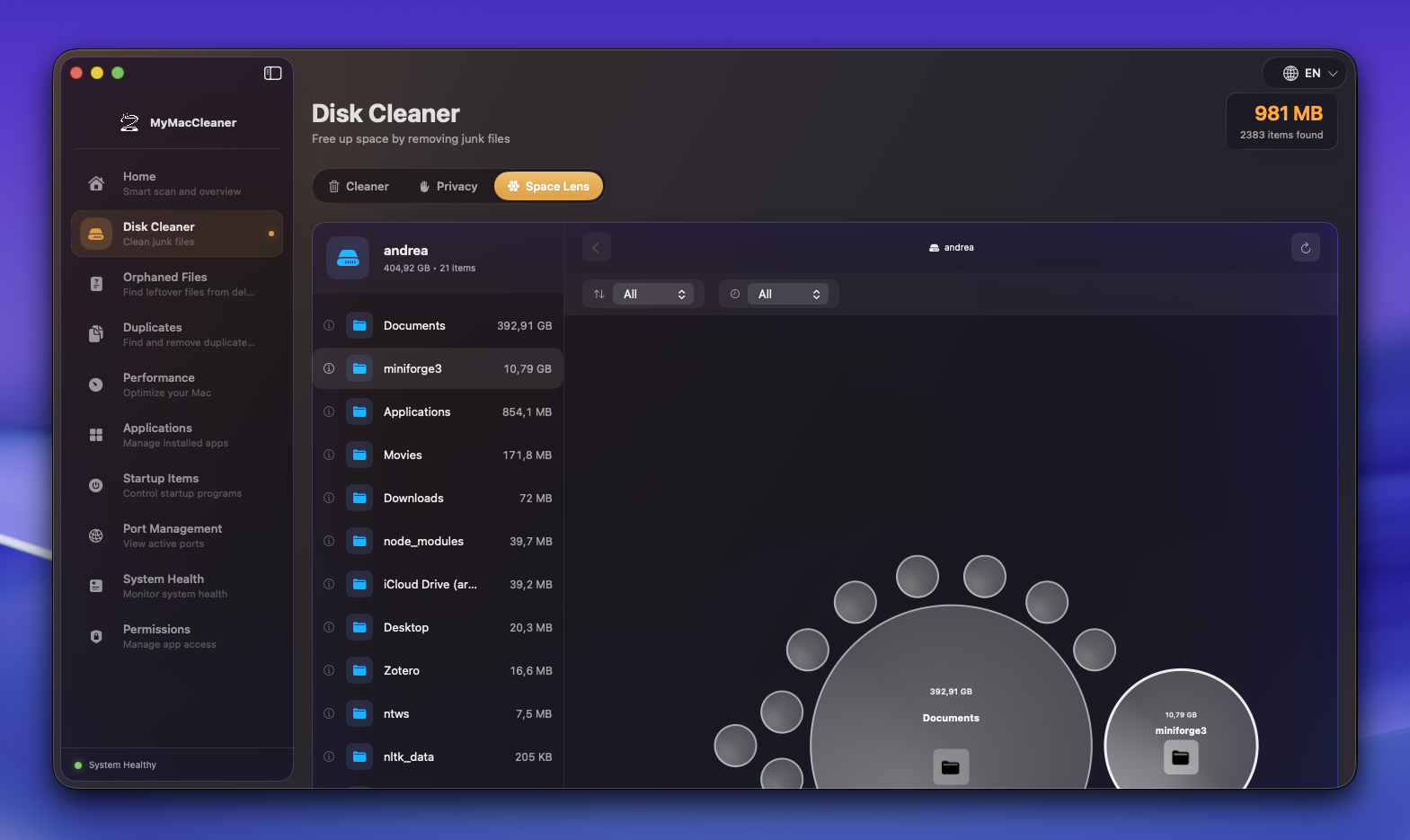 Interactive treemap visualization showing disk usage by folder and file
Overview
Space Lens helps you understand where your disk space is going through an intuitive visual representation. Find large files and folders at a glance.
How It Works
Space Lens uses a treemap visualization where:
- Each rectangle represents a file or folder
- Rectangle size is proportional to file/folder size
- Colors indicate file types
- You can drill down into folders
Color Coding
| Color | File Type |
|---|---|
| Blue | Documents (PDF, DOC, TXT) |
| Green | Images (JPG, PNG, HEIC) |
| Purple | Videos (MP4, MOV, MKV) |
| Orange | Audio (MP3, AAC, FLAC) |
| Red | Archives (ZIP, DMG, PKG) |
| Gray | Applications |
| Yellow | Code & Development |
| Teal | Other |
Navigation
Drill Down
- Click on any folder to zoom into it
- See detailed breakdown of that folder’s contents
- Breadcrumb trail shows your current path
Zoom Out
- Click the breadcrumb to go back
- Use Back button to return to parent
- Home icon returns to root view
Selection
- Single click to select item
- Info panel shows details (size, date, path)
- Right-click for context menu
Actions
From the Space Lens view, you can:
| Action | Description |
|---|---|
| Reveal in Finder | Open the file location |
| Quick Look | Preview the file |
| Move to Trash | Delete the file |
| Add to Cleanup | Queue for batch deletion |
| Copy Path | Copy file path to clipboard |
Scanning Options
Quick Scan
- Scans top-level directories
- Results in seconds
- Good for overview
Deep Scan
- Scans all files recursively
- Takes longer but complete
- Best for finding hidden large files
Custom Path
- Scan specific folder
- Useful for targeted cleanup
- Drag & drop folder support
Filters
Filter the visualization by:
- Minimum Size: Hide files smaller than threshold
- File Type: Show only specific types
- Date Modified: Find old/recent files
- Hidden Files: Show/hide dotfiles
Tips
- Start with home folder - Most user data is here
- Check Downloads - Often contains forgotten large files
- Look for duplicates - Similar-sized files in different locations
- Old iOS backups - Can be several GB each
- Application Support - Some apps store lots of data here
Keyboard Shortcuts
| Shortcut | Action |
|---|---|
Space | Quick Look selected item |
Cmd + Backspace | Move to Trash |
Cmd + Up | Go to parent folder |
Cmd + R | Refresh scan |
Cmd + F | Filter/Search |
Performance
- Scans run in background
- Progress indicator shows status
- Cancel anytime without losing partial results
- Results cached for quick re-access