Permissions Guide
Understanding and managing permissions for MyMacCleaner.
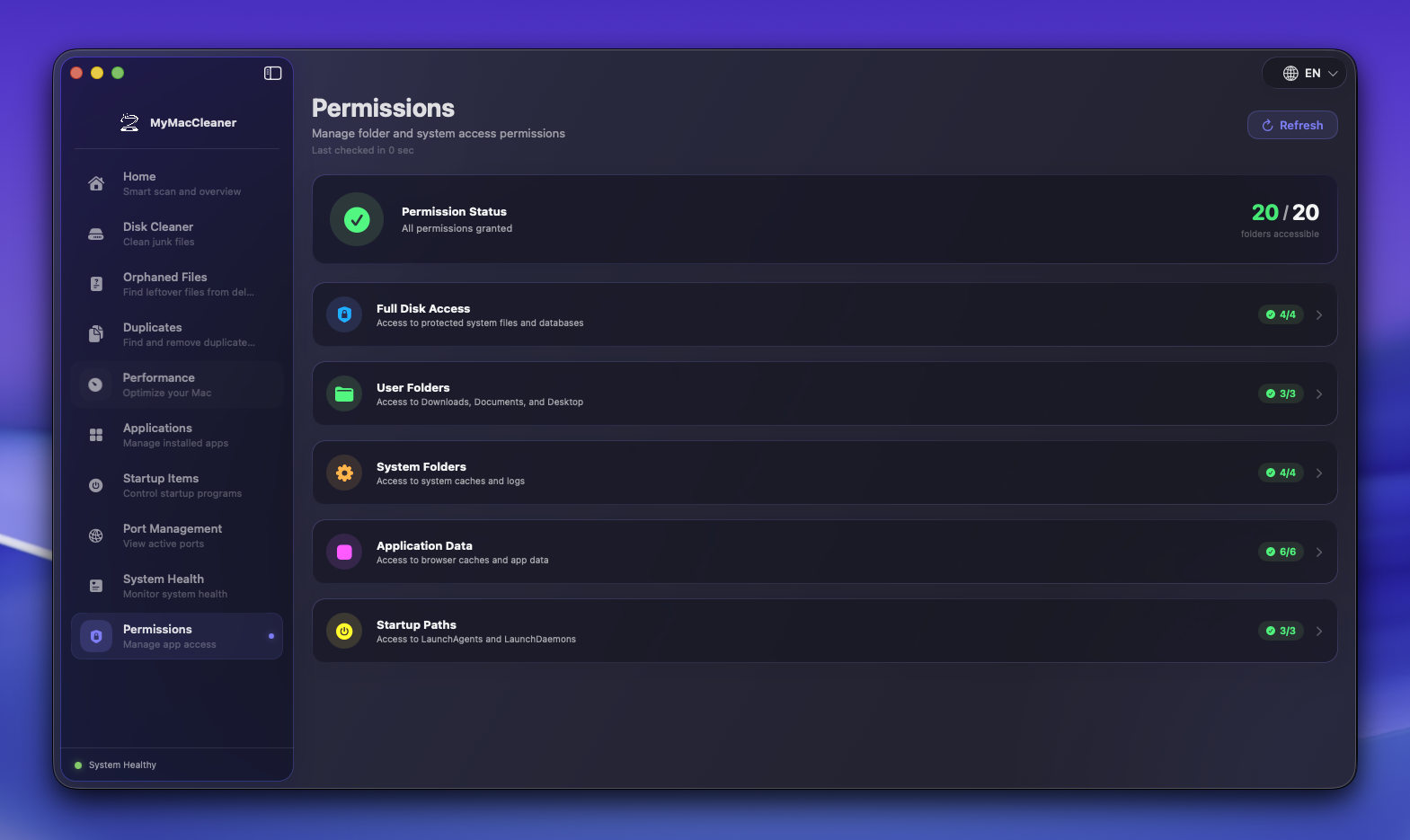 Permissions management page showing folder access status
Overview
MyMacCleaner needs certain permissions to access system files and perform cleanup operations. This guide explains what permissions are needed, why, and how to grant them.
Our Permission Philosophy
- Request only when needed - We never ask for permissions on app launch
- Explain before asking - You’ll always know why we need access
- Graceful degradation - The app works with limited features if you decline
- Minimal access - We request only what’s necessary for each feature
Permissions Management Page
MyMacCleaner includes a dedicated Permissions page in the sidebar (indigo icon) where you can review and manage all folder access permissions.
Features
- Visual Status Overview: See at a glance which folders the app can and cannot access
- Category Organization: Permissions are grouped into logical categories:
- Full Disk Access: TCC Database, Safari data, Mail Library
- User Folders: Downloads, Documents, Desktop
- System Folders: System Caches, Logs, Launch Agents/Daemons
- Application Data: User Caches, Browser Caches, Xcode data, Trash
- Startup Paths: User and System Launch Agents/Daemons
- Expandable Cards: Click any category to see individual folder permissions
- Grant Permissions: Request access directly from the app:
- TCC Folders (Downloads, Documents, Desktop): Click “Grant” to trigger the macOS permission dialog
- FDA Folders: Click the gear button to open System Settings
- Revoke Permissions: Open the appropriate System Settings pane to revoke access
- Auto-Refresh: Permissions status updates automatically when you return from System Settings
Status Icons
| Icon | Status | Meaning |
|---|---|---|
| ✓ (Green) | Accessible | App can read this folder |
| ✕ (Red) | Denied | No access - permission needed |
| ? (Orange) | Unknown | Folder doesn’t exist or status unclear |
Using the Permissions Page
- Navigate to the Permissions section in the sidebar
- Review the summary card showing accessible/total folders
- Expand any category to see individual folder status
- Grant access by clicking the green “Grant” button (for TCC folders) or blue gear button (for FDA folders)
- Revoke access by clicking the red “Revoke” button to open System Settings
macOS Limitations
- Full Disk Access: Cannot be granted programmatically - you must enable it manually in System Settings
- Permission Revocation: macOS does not allow apps to revoke their own permissions - must be done in System Settings
- TCC Dialog: Only shown once per folder - if dismissed, use “Reset” in System Settings to trigger again
Required Permissions
Full Disk Access (FDA)
What it is: System-wide permission to read files in protected locations.
Why we need it:
- Scan system caches (
/Library/Caches) - Scan system logs (
/Library/Logs) - Access Mail attachments
- Read application containers
- Scan for app leftovers during uninstall
Features requiring FDA:
- Disk Cleaner (system categories)
- Smart Scan (complete scan)
- Application Uninstaller (complete leftover detection)
- Space Lens (full disk scanning)
Features that work without FDA:
- User caches and logs
- Xcode cleanup
- RAM management
- Port management
- Startup items (partial)
How to Grant Full Disk Access
- MyMacCleaner will prompt you when FDA is needed
- Click “Open System Settings” in the prompt
- System Settings opens to Privacy & Security > Full Disk Access
- Click the lock icon and authenticate
- Find MyMacCleaner in the list
- Toggle the switch ON
- Return to MyMacCleaner
Manual Path:
System Settings > Privacy & Security > Full Disk AccessAutomation Permission
What it is: Permission to control other applications.
Why we need it:
- Quit apps before uninstalling
- Clean up app-specific data
When requested:
- When uninstalling apps that are currently running
How to grant:
- A system dialog will appear automatically
- Click “OK” to allow
Checking Permission Status
In MyMacCleaner
Option 1: Permissions Page (Recommended)
Click the Permissions section in the sidebar to:
- View all folder permissions at a glance
- See which categories have full/partial/no access
- Grant or revoke permissions directly
- Refresh status after making changes
Option 2: Settings > Permissions
Go to MyMacCleaner > Settings > Permissions to:
- View Full Disk Access status
- Open System Settings directly to grant FDA
In System Settings
- Open System Settings
- Go to Privacy & Security
- Check relevant categories:
- Full Disk Access
- Automation
- Files and Folders
Administrator Password
Some operations require your administrator password:
| Operation | Why |
|---|---|
| Free Memory | sudo purge command |
| Flush DNS | System cache access |
| Rebuild Spotlight | Index modification |
| Kill system processes | Elevated privileges |
Security notes:
- Password is never stored
- Used only for immediate operation
- Handled securely via macOS APIs
Privacy & Security
What We Access
| Data Type | Purpose | Stored? |
|---|---|---|
| File paths | Scanning | No |
| File sizes | Display | No |
| Process list | Port management | No |
| App list | Uninstaller | No |
What We Never Do
- Send data to external servers
- Store your files or data
- Access personal documents content
- Track your usage
- Collect analytics
Data Handling
- All scanning happens locally
- No cloud services required
- No account needed
- Completely offline capable
Troubleshooting
”Operation not permitted”
Cause: Missing Full Disk Access
Solution:
- Grant FDA (see instructions above)
- Restart MyMacCleaner
- Try operation again
Permission Not Appearing
Cause: App not recognized by macOS
Solution:
- Quit MyMacCleaner completely
- Open System Settings > Privacy & Security > Full Disk Access
- Click + button
- Navigate to Applications and select MyMacCleaner
- Restart the app
Changes Not Taking Effect
Cause: macOS caching permission state
Solution:
- Fully quit MyMacCleaner (Cmd + Q)
- Toggle permission OFF then ON
- Relaunch the app
App Crashes After Granting
Cause: Permission change during operation
Solution:
- Quit and relaunch MyMacCleaner
- If persists, remove and re-add permission
- Restart Mac if needed
Revoking Permissions
You can revoke permissions anytime:
- Open System Settings
- Go to Privacy & Security
- Select the permission category
- Toggle MyMacCleaner OFF
Note: Some features will become unavailable.
FAQ
Q: Is it safe to grant Full Disk Access? A: Yes, for trusted apps. FDA is read access to protected locations. MyMacCleaner is open-source, so you can verify exactly what we do with this access.
Q: Why doesn’t MyMacCleaner appear in FDA list? A: You need to trigger an FDA request first, or manually add the app using the + button.
Q: Can I use MyMacCleaner without any permissions? A: Yes, with limited functionality. User-level cleanup, RAM management, and port management work without special permissions.
Q: Is my password stored? A: Never. It’s used once for the specific operation and immediately discarded.