Performance
System optimization tools and maintenance tasks.
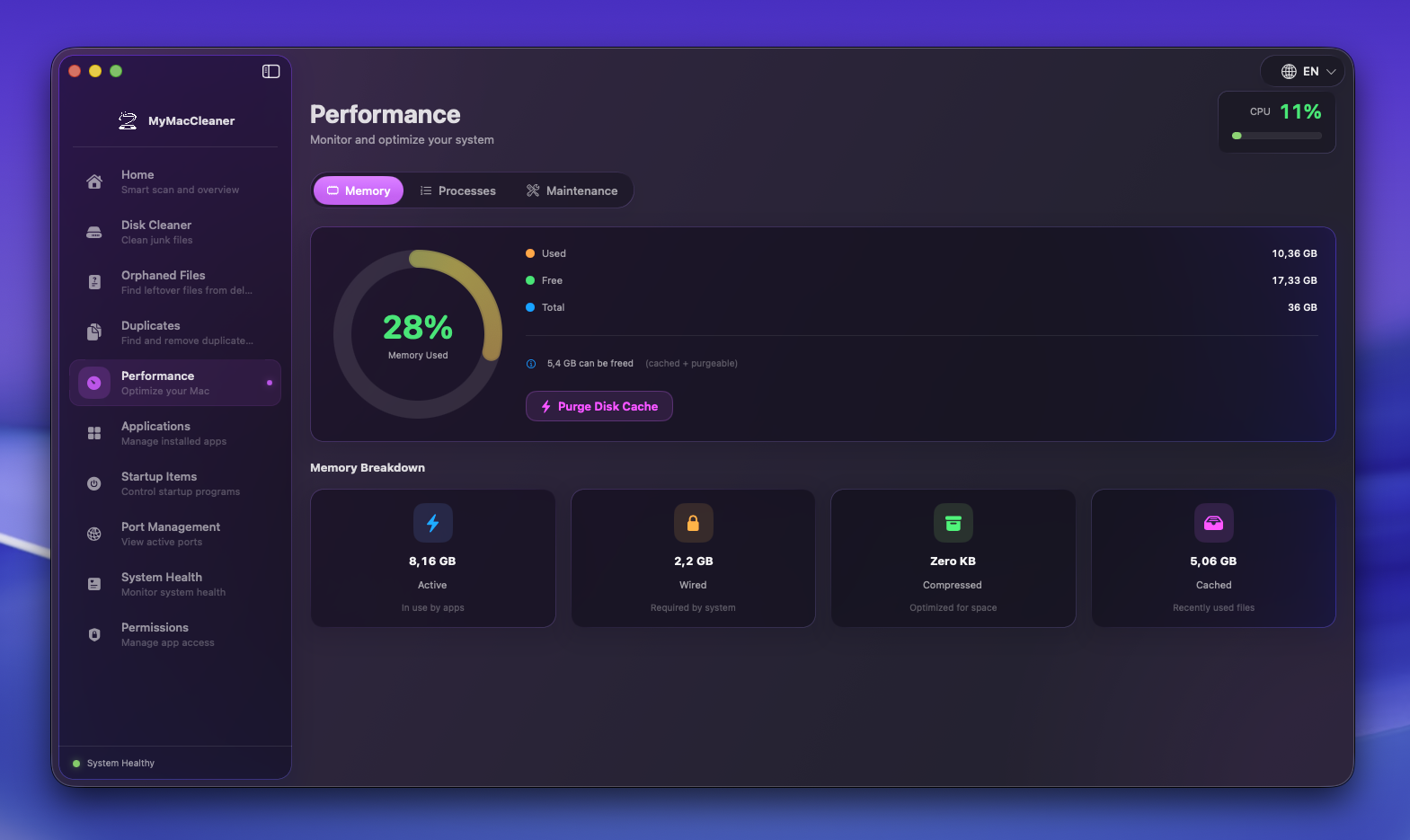 Performance dashboard showing memory usage, processes, and maintenance options
Overview
The Performance section provides tools to optimize your Mac’s speed and responsiveness through memory management and system maintenance.
Memory Management
Free Up Memory
Releases inactive RAM to improve performance.
How it works:
- Uses macOS
purgecommand - Clears inactive memory pages
- Forces disk cache flush
- Safe and reversible
When to use:
- Mac feels sluggish
- Memory pressure is high (yellow/red in Activity Monitor)
- Before running memory-intensive apps
- After closing large applications
Note: macOS manages memory automatically. Only use this when experiencing actual slowdowns.
Memory Monitor
Real-time display of memory usage:
| Metric | Description |
|---|---|
| Used | Memory actively in use |
| Cached | Files cached for quick access |
| Compressed | Memory compressed to save space |
| Free | Available memory |
| Pressure | Overall memory health indicator |
Maintenance Tasks
DNS Cache Flush
Clears the DNS resolver cache.
Benefits:
- Fixes website connection issues
- Resolves DNS-related errors
- Applies DNS changes immediately
Command: sudo dscacheutil -flushcache && sudo killall -HUP mDNSResponder
Rebuild Spotlight Index
Recreates the Spotlight search index.
When to use:
- Search returns incorrect results
- Files not appearing in search
- After major file reorganization
Note: Takes time to complete. Mac will index in background.
Command: sudo mdutil -E /
Rebuild Launch Services
Fixes application associations and “Open With” menu.
When to use:
- Wrong app opens for file types
- Duplicate apps in “Open With” menu
- App icons appear generic
Command: /System/Library/Frameworks/CoreServices.framework/Frameworks/LaunchServices.framework/Support/lsregister -kill -r -domain local -domain system -domain user
Clear Font Cache
Removes cached font data.
When to use:
- Fonts displaying incorrectly
- Font-related app crashes
- After installing/removing fonts
Command: sudo atsutil databases -remove
Optimization Scripts
What They Do
| Script | Purpose |
|---|---|
| Clean Temp Files | Remove /tmp and /var/folders contents |
| Rotate Logs | Archive and compress old log files |
| Update Databases | Rebuild locate and whatis databases |
Important Note
As of macOS Sequoia (15.0), Apple has removed the traditional periodic maintenance scripts. The system now handles these tasks automatically. The optimization features in MyMacCleaner are adapted for modern macOS versions.
Usage Tips
- Don’t overdo it - macOS is optimized out of the box
- Memory freeing - Only when actually experiencing issues
- Spotlight rebuild - Rarely needed, let it complete once started
- Run one at a time - Some tasks are resource-intensive
Permissions Required
Most maintenance tasks require administrator privileges. You’ll be prompted for your password when running these operations.
Run All Feature
The “Run All” button executes all maintenance tasks with a single password prompt, making it convenient to perform regular maintenance without multiple authentication dialogs.