Orphaned Files
Detect and remove leftover files from applications that have been uninstalled.
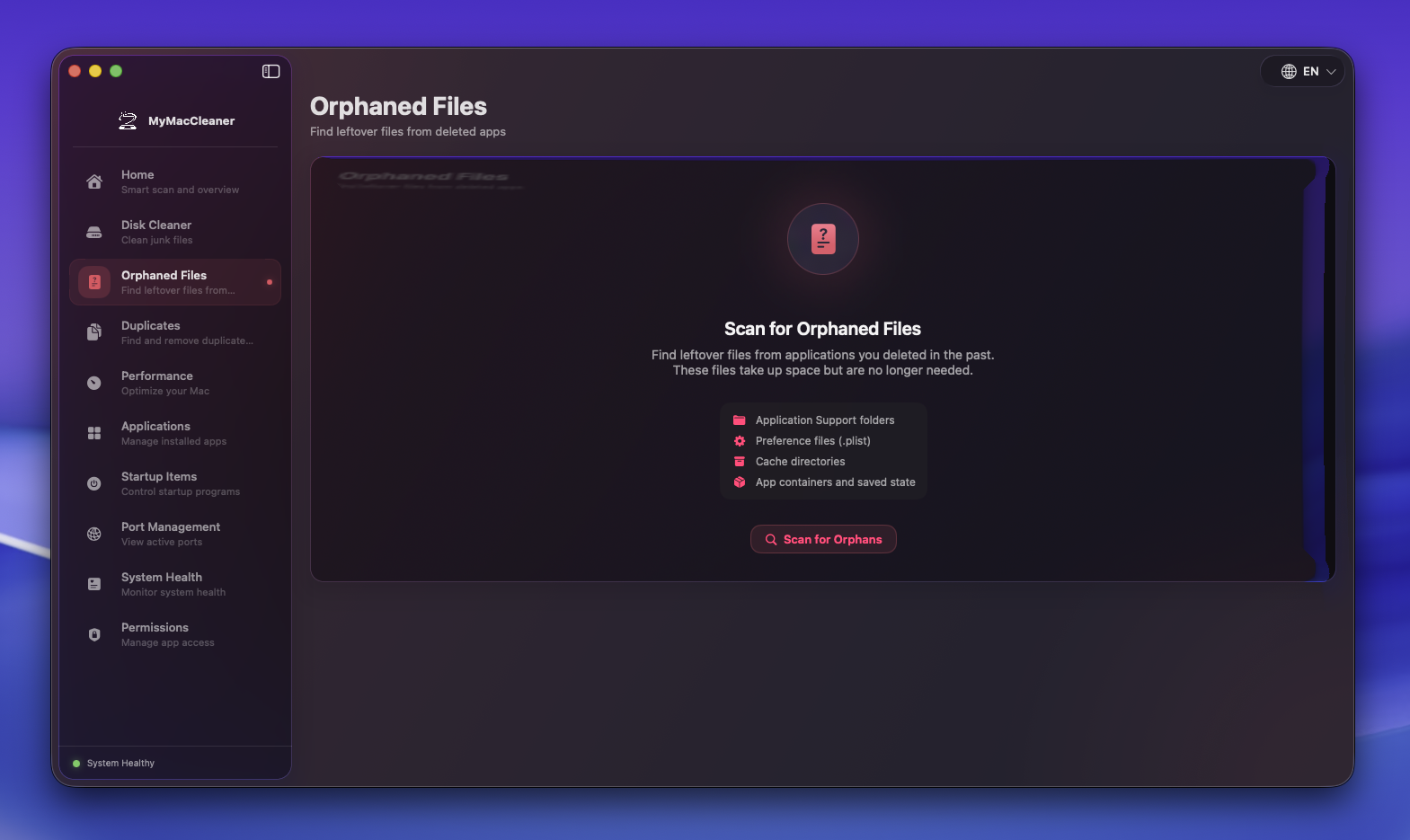 Orphaned Files scanner ready to detect leftover files
Overview
When you delete an application by dragging it to the Trash, many associated files remain on your system. These “orphaned files” can accumulate over time, taking up valuable disk space. The Orphaned Files scanner identifies these remnants and helps you safely remove them.
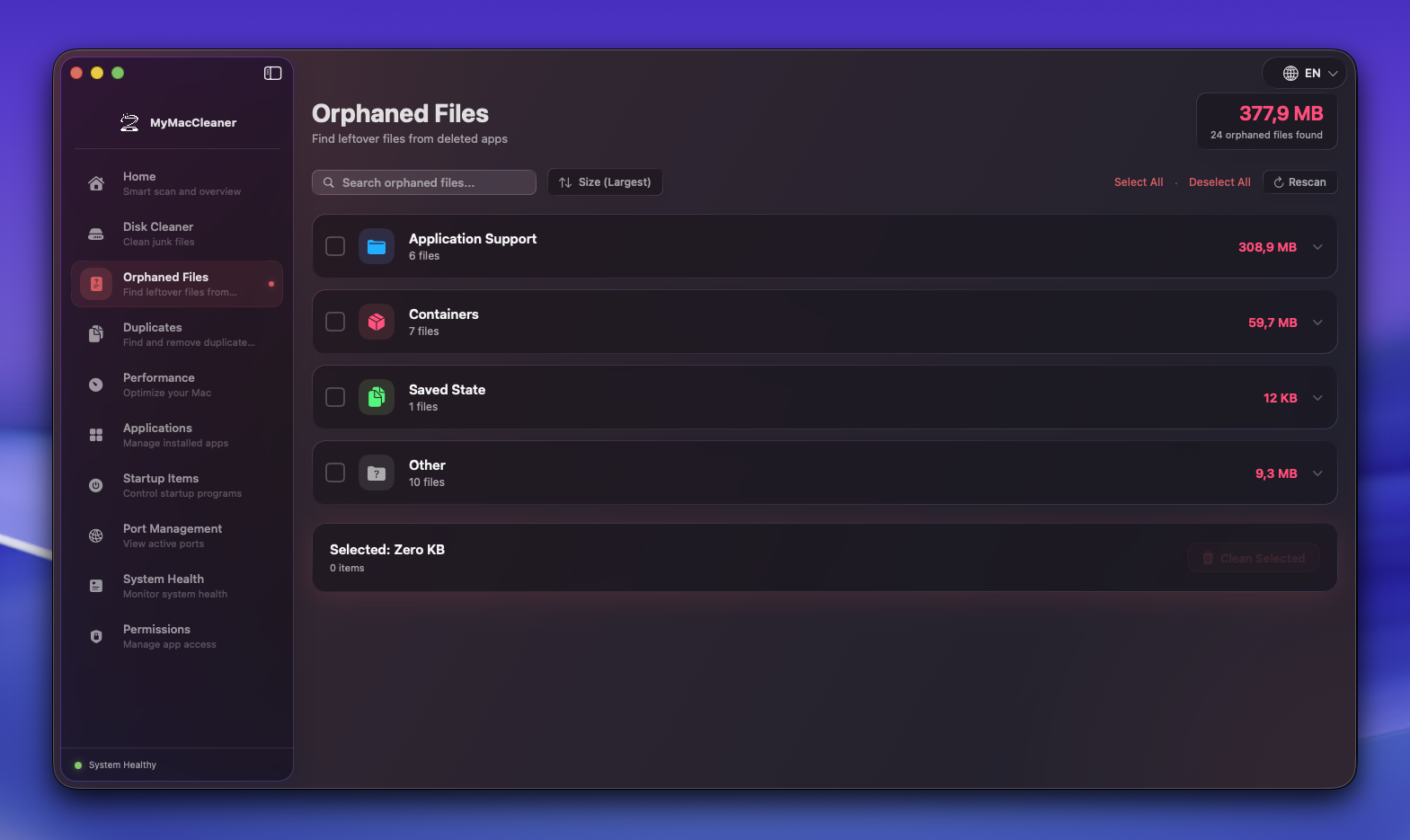 Scan results showing orphaned files grouped by category
What Are Orphaned Files?
Orphaned files are support files that were created by applications but remain after the app is uninstalled. They include:
- Preferences - App settings stored in plist files
- Application Support - Data files, plugins, and resources
- Caches - Temporary data that speeds up app performance
- Containers - Sandboxed app data (for App Store apps)
- Saved States - Window positions and restore data
- Logs - Application log files
Scan Locations
The scanner checks the following directories for orphaned files:
| Location | Description |
|---|---|
~/Library/Preferences | Property list files with app settings |
~/Library/Application Support | App data, plugins, licenses |
~/Library/Caches | Cached data for faster app loading |
~/Library/Containers | Sandboxed app data |
~/Library/Saved Application State | App window restore data |
~/Library/Logs | Application log files |
~/Library/Cookies | Website and app cookies |
~/Library/HTTPStorages | HTTP storage data |
~/Library/WebKit | WebKit browsing data |
How Detection Works
- Inventory Installed Apps - Scans
/Applicationsand~/Applicationsfor bundle identifiers - Scan Library Folders - Enumerates files in support directories
- Match Bundle IDs - Identifies files belonging to apps no longer installed
- Filter System Files - Excludes Apple system files and current app files
- Calculate Sizes - Determines space that can be recovered
How to Use
- Navigate to Orphaned Files in the sidebar
- Click Scan for Orphans to start scanning
- Review the found items grouped by category
- Expand categories to see individual files
- Select items you want to remove (or use Select All)
- Click Clean Selected to move items to Trash
Categories
Preferences
Small plist files containing app settings. Safe to delete.
Application Support
May contain important data like licenses or user files. Review before deleting.
Caches
Always safe to delete. Apps recreate caches as needed.
Containers
Sandboxed app data. May contain documents - review carefully.
Saved States
Window positions and restore data. Safe to delete.
Logs
Application log files. Safe to delete unless debugging issues.
Safety Features
- Trash Instead of Delete - All items are moved to Trash, not permanently deleted
- System Protection - Apple system files are never flagged
- Active App Protection - Files for currently running apps are excluded
- Size Display - See exactly how much space each item uses
- Category Grouping - Easily review items by type
Best Practices
- Review Application Support - May contain important user data
- Keep Recent Items - Recently modified files might still be needed
- Check Container Data - May have documents you want to keep
- Regular Cleanup - Run monthly to prevent accumulation
- Empty Trash After - Remember to empty Trash to reclaim space
Permissions Required
Full Disk Access is recommended for complete scanning:
- Required for
~/Library/Containers - Required for some Application Support folders
- See Permissions Guide for setup
Troubleshooting
Some files can’t be deleted
- Check if the associated app is still running
- Some files may be protected by System Integrity Protection
- Container files may require Full Disk Access
Missing orphaned files
- Ensure Full Disk Access is granted
- Some apps use non-standard bundle identifiers
- System apps are intentionally excluded
App reinstalled but files still flagged
- Rescan after installing the app
- The scanner checks installed apps at scan time