Menu Bar Monitor
Monitor your Mac’s performance at a glance from the menu bar.
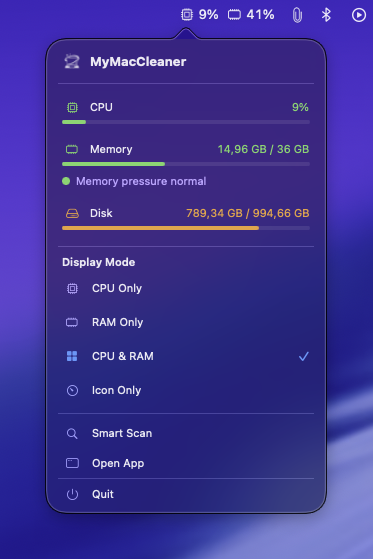 Menu Bar popover showing CPU, Memory, and Disk stats with quick actions
Overview
The Menu Bar Monitor provides real-time CPU and RAM monitoring directly in your menu bar. Click to see detailed stats and quick actions without opening the full app.
Enabling the Menu Bar
- Open MyMacCleaner
- Go to Settings (Cmd + ,) or click MyMacCleaner > Settings
- Select the General tab
- Toggle Show in menu bar to ON
- Choose your preferred Display Mode
Display Modes
Choose how information appears in the menu bar:
| Mode | Display | Example |
|---|---|---|
| CPU Only | Shows CPU percentage | CPU 45% |
| RAM Only | Shows RAM usage | RAM 8.2 GB |
| CPU & RAM | Shows both values | CPU 45% | RAM 8.2 GB |
| Compact | Color-coded indicators | 🟢45% 🟡62% |
Compact Mode Colors
In compact mode, colored indicators show status at a glance:
| Color | CPU/RAM Usage |
|---|---|
| 🟢 Green | 0-50% (Normal) |
| 🟡 Yellow | 50-80% (Elevated) |
| 🔴 Red | 80-100% (High) |
Menu Bar Popover
Click the menu bar item to see detailed information:
CPU Section
- Current CPU usage percentage
- Color-coded progress bar
- Updates every 2 seconds
Memory Section
- Used vs Total RAM (e.g., “8.2 GB / 16 GB”)
- Memory usage progress bar
- Memory pressure indicator:
- Normal - System running smoothly
- Elevated - Consider closing some apps
- Critical - System may slow down
Disk Section
- Used vs Total disk space
- Storage usage progress bar
- Color indicates available space
Quick Actions
- Smart Scan - Opens app and starts a full scan
- Open App - Brings MyMacCleaner to the foreground
Footer
- Shows “Live monitoring” status
- Quit button to close the entire app
Settings
Changing Display Mode
While the menu bar is active:
- Click the menu bar item
- Click the gear icon in the top-right
- Select your preferred display mode
Or from Settings:
- Open Settings > General
- Use the “Display Mode” dropdown
Disabling Menu Bar
- Go to Settings > General
- Toggle Show in menu bar to OFF
The menu bar icon will disappear, but the app continues to run normally.
Resource Usage
The menu bar monitor is designed to be lightweight:
- Updates every 2 seconds (not continuously)
- Minimal CPU overhead (~0.1%)
- Small memory footprint
- No impact on battery life
Troubleshooting
Menu bar icon doesn’t appear
- Check that “Show in menu bar” is enabled in Settings
- Try toggling the setting off and on
- Restart the app if needed
Stats seem inaccurate
- CPU usage is averaged over cores
- RAM calculation matches Activity Monitor methodology
- Some system memory is reserved and not shown
Menu bar is crowded
- Use Compact mode for smaller display
- macOS may hide icons if space is limited
- Hold Cmd and drag to rearrange menu bar items
Popover won’t open
- Click directly on the MyMacCleaner text/icon
- If another popover is open, click elsewhere first
- Try moving the mouse away and clicking again
Tips
- Use Compact Mode if you want minimal screen space usage
- Check Memory Pressure - More useful than raw numbers
- Quick Scan Access - Use the menu bar for fast scans
- Monitor During Tasks - Watch resource usage while running intensive apps