Home & Smart Scan
The Home screen is your dashboard for quick system overview and one-click cleanup.
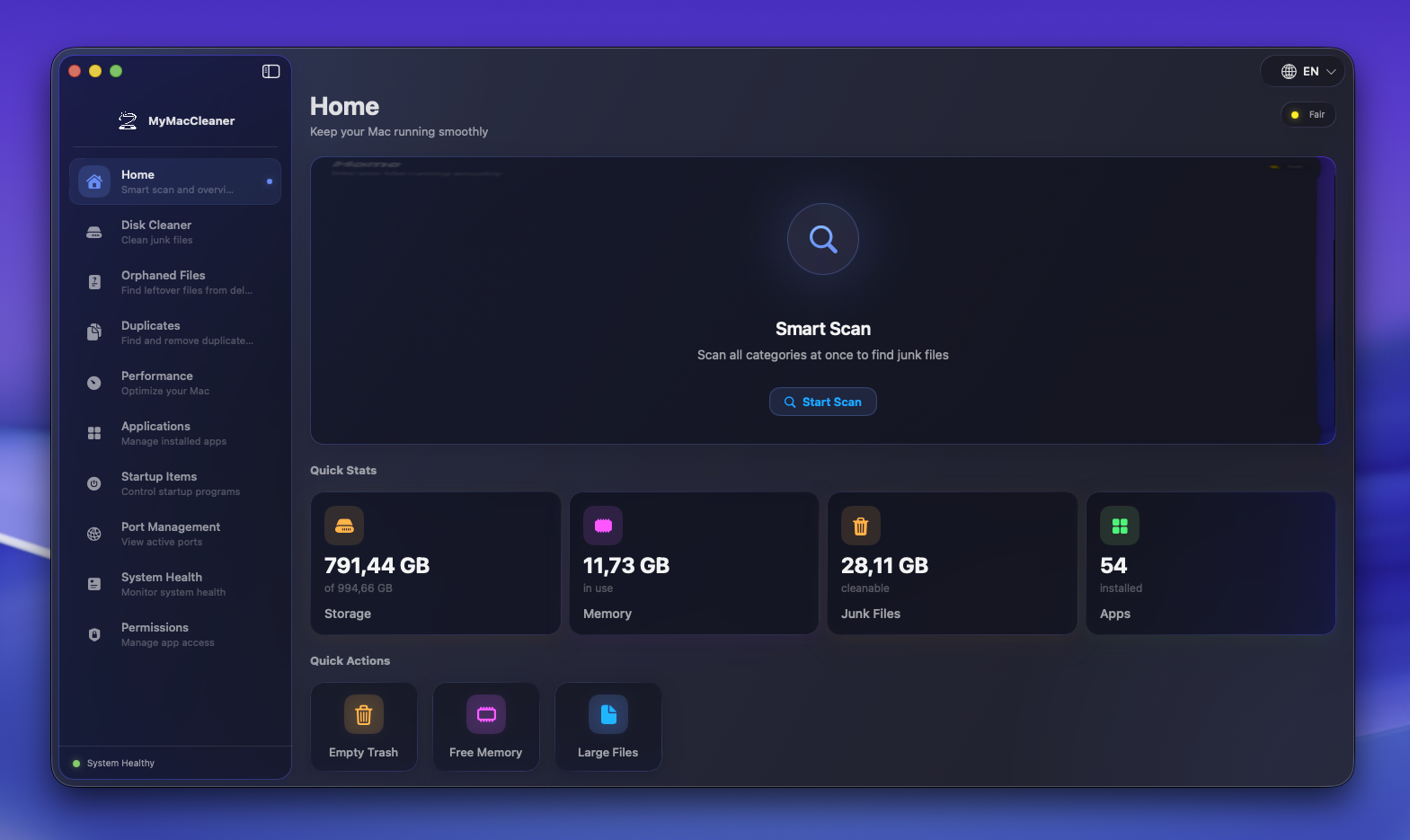 Home screen with Smart Scan ready to analyze your system
Overview
When you open MyMacCleaner, the Home screen provides:
- Quick system stats at a glance
- Smart Scan for comprehensive cleanup
- Recent activity and cleanup history
- Quick action shortcuts
Quick Stats
The dashboard displays four key metrics:
| Stat | Description |
|---|---|
| Storage | Total disk usage and available space |
| Memory | Current RAM usage and pressure level |
| Junk Files | Estimated cleanable space |
| Apps | Total installed applications |
Smart Scan
Smart Scan analyzes your system across all cleanup categories in one click.
What It Scans
- System Junk - Caches, logs, temporary files
- User Junk - Downloads, mail attachments
- Application Junk - App caches, crash reports
- Development Files - Xcode DerivedData, simulators
- Browser Data - Browser caches (Safari, Chrome, Firefox)
- Trash - Items in your Trash
How to Use
- Click the Smart Scan button on the Home screen
- Wait for the scan to complete (progress shown)
- Review the results by category
- Click Clean to remove selected items
Scan Results
After scanning, you’ll see:
- Total cleanable space found
- Breakdown by category
- Individual items you can select/deselect
- Safety indicators for each item
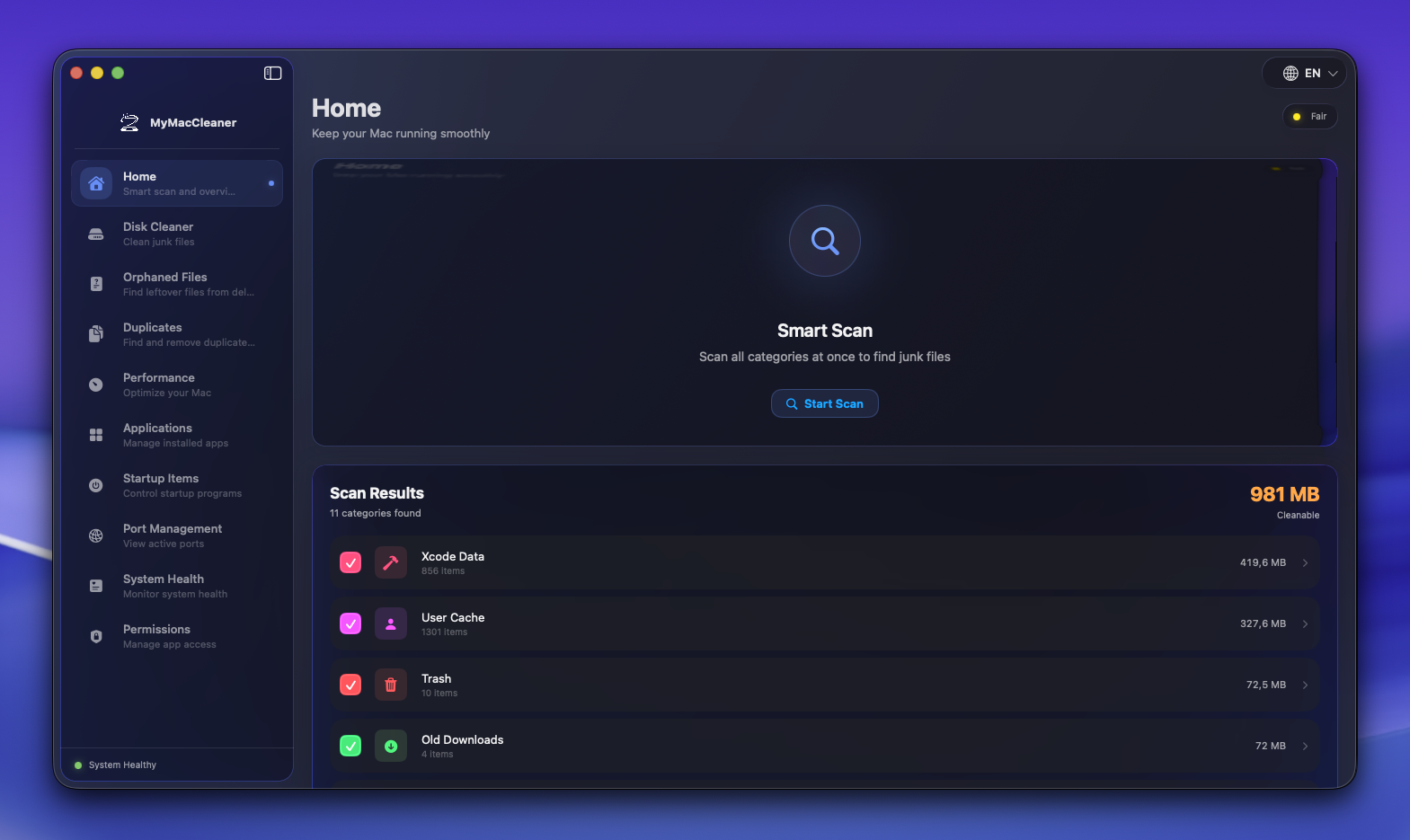 Scan results showing cleanable categories and total space to recover
Quick Actions
Shortcuts to common tasks:
- Empty Trash - Clear your Trash instantly
- Free Memory - Release inactive RAM
- View Large Files - Jump to Space Lens
Tips
- Run Smart Scan weekly for optimal performance
- Review results before cleaning - some cached data speeds up apps
- Use individual feature pages for more granular control