Duplicate Finder
Find and remove duplicate files to reclaim wasted disk space.
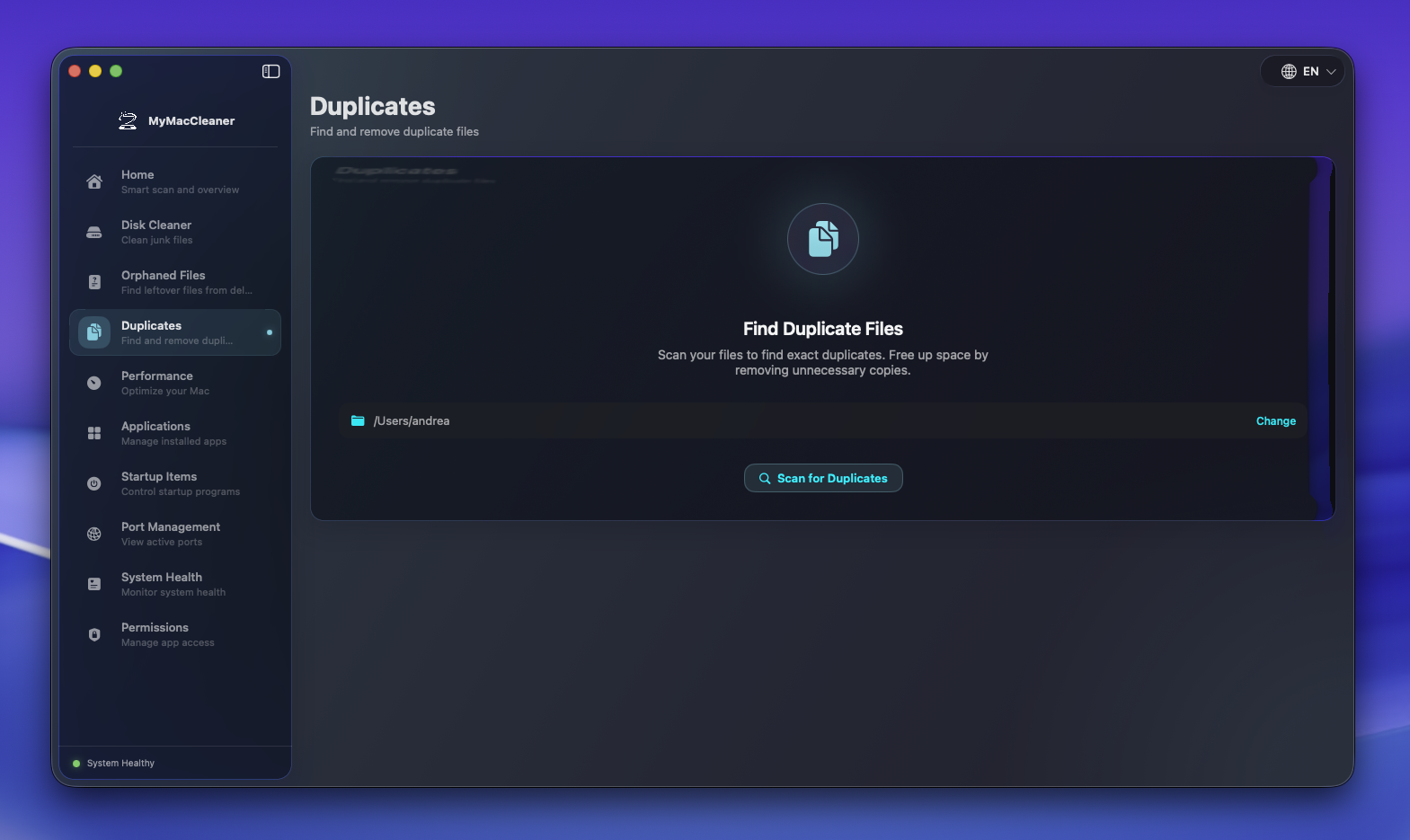 Duplicate Finder ready to scan for duplicate files
Overview
The Duplicate Finder scans your folders for exact duplicate files using SHA256 hashing. It identifies files with identical content regardless of their names or locations, helping you safely remove redundant copies.
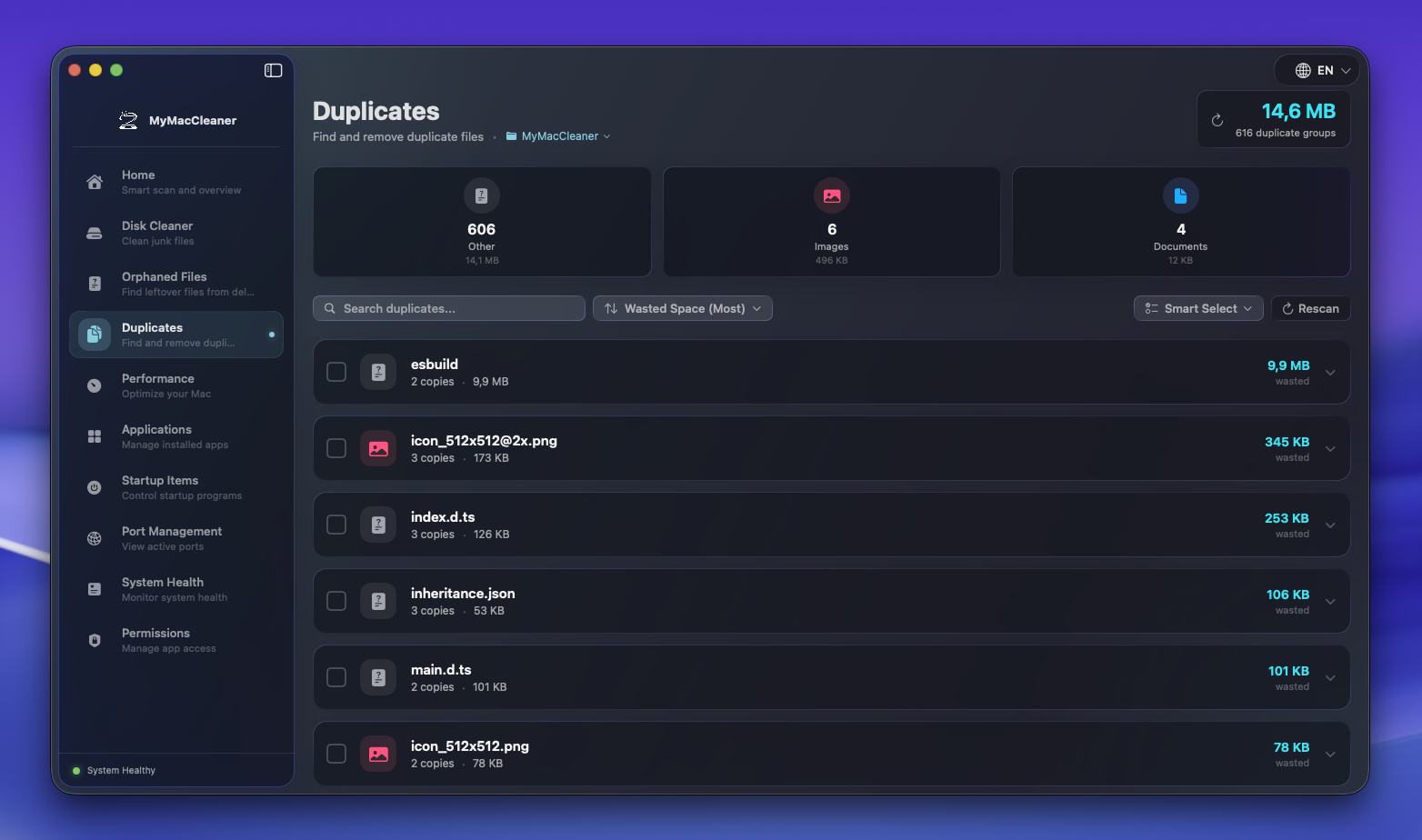 Scan results showing duplicate file groups with statistics
How It Works
The scanner uses a multi-stage process optimized for speed and accuracy:
- File Enumeration - Scans all files in the selected directory
- Size Grouping - Groups files by size (duplicates must have the same size)
- Partial Hash - Calculates SHA256 of the first 4KB for quick comparison
- Full Hash - For matching partial hashes, calculates full SHA256
- Duplicate Grouping - Files with identical full hashes are grouped together
This approach minimizes disk reads by eliminating non-duplicates early in the process.
How to Use
Starting a Scan
- Navigate to Duplicates in the sidebar
- Click Choose Folder to select the scan location (defaults to Home folder)
- Click Scan for Duplicates to begin
- Wait for the scan to complete (progress shown with cancel option)
Reviewing Results
After scanning, duplicates are displayed in groups:
- File Type Stats - Visual breakdown by category (Images, Videos, Documents, etc.)
- Duplicate Groups - Each group contains files with identical content
- Wasted Space - Shows how much space can be recovered
Selecting Files to Remove
For each duplicate group:
- One file is marked as Keep (newest by default)
- Other copies can be selected for removal
- Click on a file to toggle selection
- Use Select All Duplicates to select all non-kept files
- Use Keep Newest to automatically keep the most recent copy in each group
Cleaning Up
- Review your selections carefully
- Click Clean Selected
- Confirm in the dialog
- Files are moved to Trash (recoverable if needed)
File Types
Duplicates are categorized by type:
| Type | Extensions | Icon |
|---|---|---|
| Images | jpg, png, gif, heic, raw, etc. | Photo |
| Videos | mp4, mov, avi, mkv, etc. | Video |
| Audio | mp3, wav, flac, m4a, etc. | Music Note |
| Documents | pdf, doc, xlsx, txt, etc. | Document |
| Archives | zip, rar, dmg, iso, etc. | Archive |
| Other | All other file types | Question Mark |
Click on a type card to filter results to that category only.
Features
Smart Selection
- Keep Newest - Automatically keeps the most recently modified file
- Manual Keep - Click “Keep” on any file to preserve it
- Bulk Selection - Select/deselect all duplicates at once
Search & Filter
- Search by filename or path
- Filter by file type
- Sort by wasted space, file size, or duplicate count
Folder Selection
- Change scan folder at any time
- Current folder shown in header
- Quick rescan with the refresh button
Scan Control
- Cancel button during scanning
- Progress indicator with status messages
- Handles large folders efficiently
Safety Features
- Trash Instead of Delete - All removed files go to Trash first
- One Copy Protected - At least one copy is always preserved
- File Verification - Files are verified before deletion
- Cancellable Scans - Stop scanning at any time
Skipped Files
The scanner automatically skips:
- Hidden files (starting with
.) - System files (
.DS_Store,.localized, etc.) - Package contents (app bundles, etc.)
- Symbolic links (to prevent infinite loops)
- Temporary files (
.tmp,.temp,.lock) - Files smaller than 1KB
Best Practices
- Start with a specific folder - Scanning your entire home directory takes time
- Review before deleting - Especially for documents and archives
- Check file locations - The “right” copy might depend on where it’s stored
- Keep organized originals - If one copy is in a well-organized folder, keep that one
- Empty Trash after - Remember to empty Trash to actually reclaim space
Performance Tips
- Smaller folders scan faster
- SSD drives scan much faster than HDDs
- First scan may be slow; subsequent scans benefit from file system caches
- Cancel and narrow your search if scanning takes too long
Permissions Required
- No special permissions for user folders
- Full Disk Access needed for some system locations
- See Permissions Guide for setup
Troubleshooting
Scan is very slow
- Try scanning a smaller directory first
- SSDs are much faster than HDDs
- Cancel and try a more specific folder
No duplicates found
- Try scanning a larger directory
- Minimum file size is 1KB
- Hidden files are excluded
Can’t delete some files
- Check if files are in use by another app
- Some locations may require Full Disk Access
- System-protected files cannot be removed
Files reappear after deletion
- Empty Trash to permanently remove files
- Some apps may recreate files on launch