Disk Cleaner
Deep cleaning functionality to remove junk files and free up disk space.
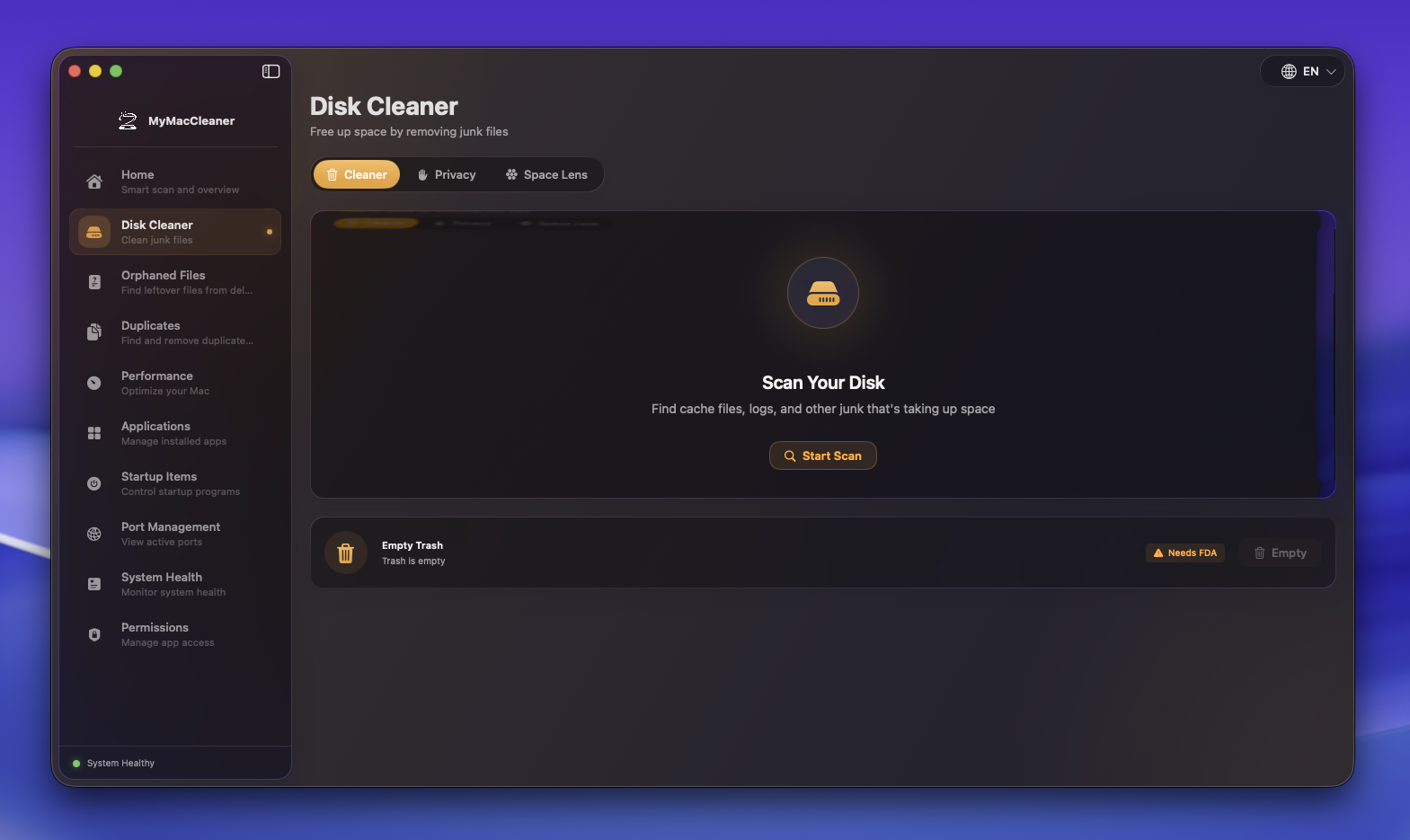 Disk Cleaner ready to scan for junk files
Overview
Disk Cleaner provides granular control over what gets cleaned, with detailed categories and safe deletion practices.
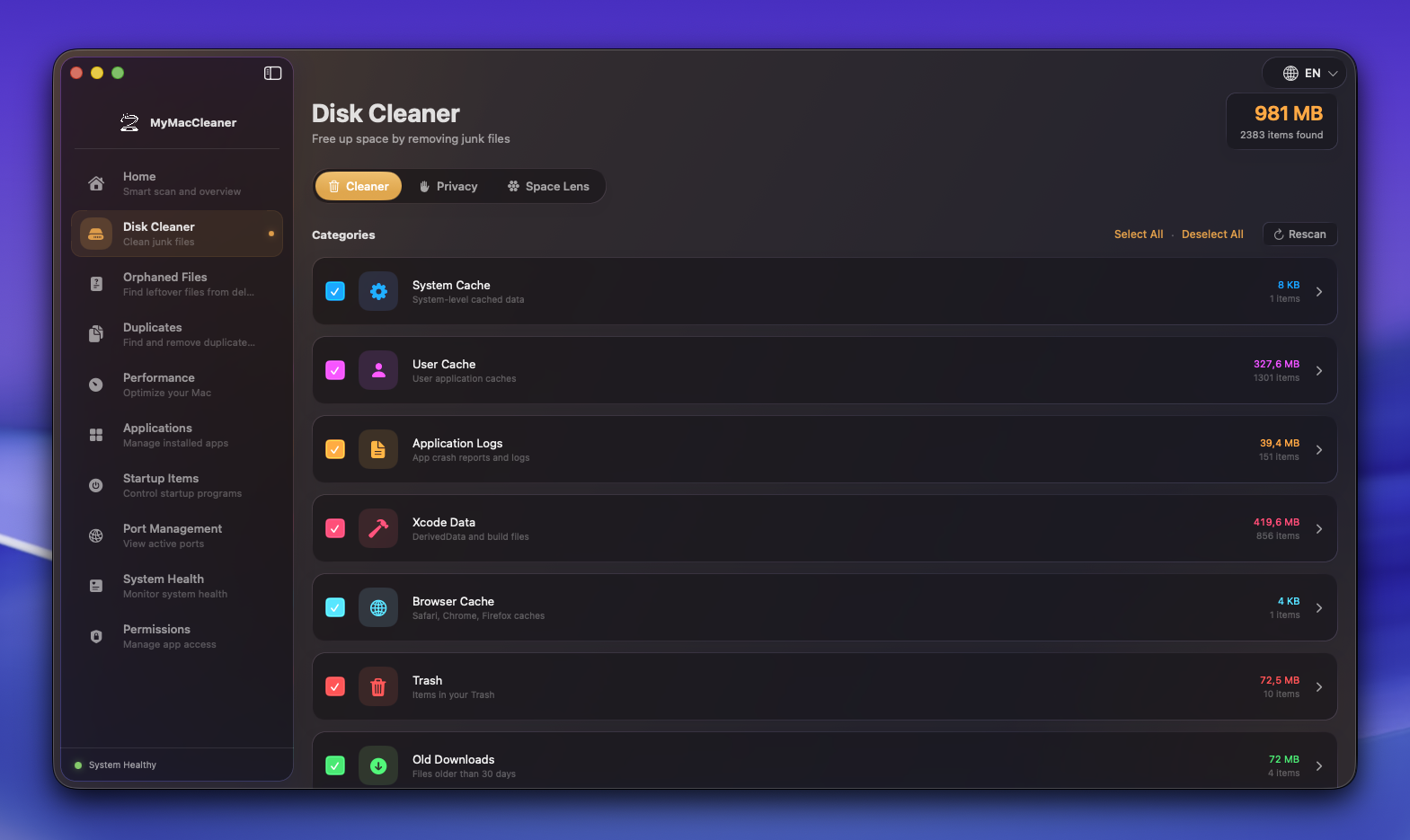 Detailed scan results showing all cleanable categories
Categories
System Junk
System-level cached and temporary files.
| Item | Location | Safe to Delete |
|---|---|---|
| System Cache | /Library/Caches | Yes |
| User Cache | ~/Library/Caches | Yes |
| System Logs | /Library/Logs | Yes |
| User Logs | ~/Library/Logs | Yes |
| Temporary Files | /tmp, /var/folders | Yes |
Application Junk
Application-specific cleanup.
| Item | Location | Safe to Delete |
|---|---|---|
| App Caches | ~/Library/Caches/[AppName] | Yes |
| Crash Reports | ~/Library/Logs/DiagnosticReports | Yes |
| Saved States | ~/Library/Saved Application State | Yes |
| App Cookies | ~/Library/Cookies | Caution |
Development Files
For developers using Xcode and related tools.
| Item | Location | Safe to Delete |
|---|---|---|
| DerivedData | ~/Library/Developer/Xcode/DerivedData | Yes |
| Archives | ~/Library/Developer/Xcode/Archives | Caution |
| Simulators | ~/Library/Developer/CoreSimulator/Devices | Yes (unused) |
| CocoaPods Cache | ~/Library/Caches/CocoaPods | Yes |
| Carthage | ~/Library/Caches/org.carthage.CarthageKit | Yes |
| SPM Cache | ~/Library/Caches/org.swift.swiftpm | Yes |
Browser Data
Web browser caches and data.
| Browser | Cache Location |
|---|---|
| Safari | ~/Library/Caches/com.apple.Safari |
| Chrome | ~/Library/Caches/Google/Chrome |
| Firefox | ~/Library/Caches/Firefox |
| Edge | ~/Library/Caches/Microsoft Edge |
Browser Privacy
The Browser Privacy tab provides deep cleaning of browser data for enhanced privacy.
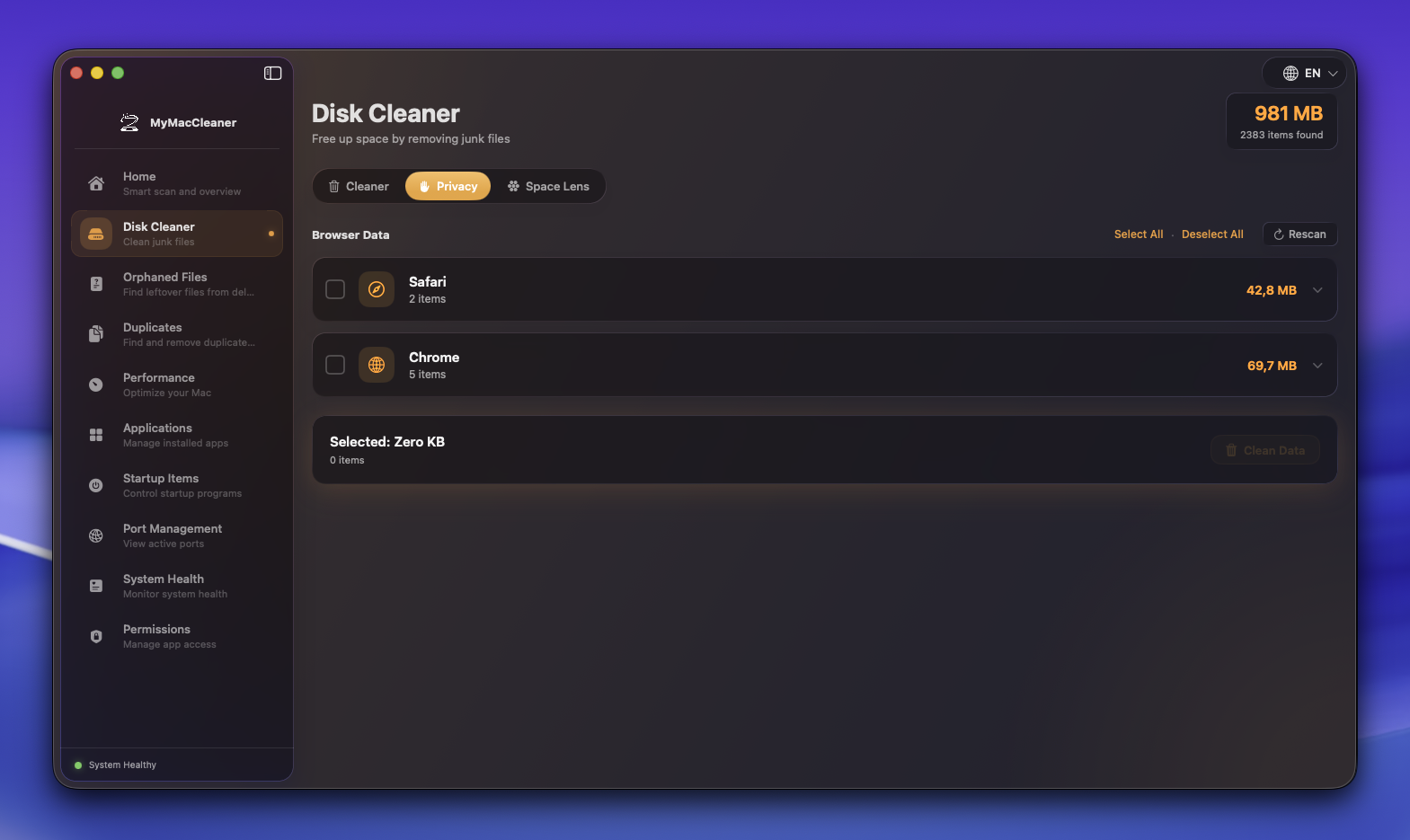 Browser Privacy tab for deep cleaning browser data
Supported Browsers
| Browser | Supported |
|---|---|
| Safari | Yes |
| Google Chrome | Yes |
| Mozilla Firefox | Yes |
| Microsoft Edge | Yes |
Cleanable Data Types
| Data Type | Description | Privacy Impact |
|---|---|---|
| Browsing History | Record of visited websites | High |
| Cookies | Website tracking and session data | High |
| Cache | Cached images, scripts, stylesheets | Medium |
| Downloads History | Record of downloaded files | Medium |
| Form Data | Autofill data for forms | High |
| Saved Passwords | Stored login credentials | Critical |
| Local Storage | Website data stored locally | Medium |
How to Use Browser Privacy
- Navigate to Disk Cleaner in the sidebar
- Click the Browser Privacy tab
- Select browsers you want to clean
- Choose data types to remove (checkboxes)
- Click Clean Selected
- Confirm the action
Warnings
- Close browsers first - Browsers should be closed during cleaning
- Saved Passwords - Will require re-entering passwords on websites
- Cookies - Will log you out of websites
- Form Data - Will clear autofill suggestions
Best Practices
- Keep browsers closed during cleaning
- Be cautious with password deletion
- Export important bookmarks first
- Consider which cookies you want to keep (banking sites, etc.)
Mail Attachments
Email attachments that take up space.
| Item | Location |
|---|---|
| Mail Downloads | ~/Library/Containers/com.apple.mail/Data/Library/Mail Downloads |
| Mail Attachments | ~/Library/Mail/V*/Mailboxes |
Empty Trash
A dedicated card at the bottom of the Cleaner tab provides quick access to empty your Trash.
Features
| Feature | Description |
|---|---|
| Size Display | Shows current Trash size |
| One-Click Empty | Empty Trash with a single click |
| Confirmation | Asks for confirmation before permanently deleting |
| FDA Badge | Shows if Full Disk Access is needed for complete cleanup |
Permission Requirements
- With Full Disk Access: Empties all Trash contents including protected files
- Without Full Disk Access: May not be able to remove some files
The “Needs FDA” badge is clickable - click it to open System Settings and grant Full Disk Access.
How to Use
- Check the Trash size displayed on the card
- Click Empty Trash button
- Confirm the action in the dialog
- Wait for the operation to complete
How to Use
- Navigate to Disk Cleaner in the sidebar
- Select categories you want to scan
- Click Scan to analyze
- Review items in each category
- Uncheck items you want to keep
- Click Clean to delete selected items
Safety Features
Pre-deletion Checks
- Files are verified before deletion
- System-critical files are protected
- Recently modified files are flagged
Trash Option
- Option to move items to Trash instead of permanent deletion
- Recover from Trash if needed before emptying
Size Thresholds
- Items under 1MB grouped as “Small Files”
- Large files (>100MB) highlighted
- Total savings calculated in real-time
Best Practices
- Don’t delete everything - Some caches improve app performance
- Review before cleaning - Check flagged items carefully
- Xcode DerivedData - Safe to delete, rebuilds automatically
- Browser caches - Will slow down frequently visited sites temporarily
- Mail attachments - Ensure emails are synced before cleaning
Permissions Required
Full Disk Access is required to scan:
- System caches (
/Library/Caches) - System logs (
/Library/Logs) - Mail data
- Some application containers
See Permissions Guide for setup instructions.