Applications Manager
Complete application management: uninstall apps properly and check for updates.
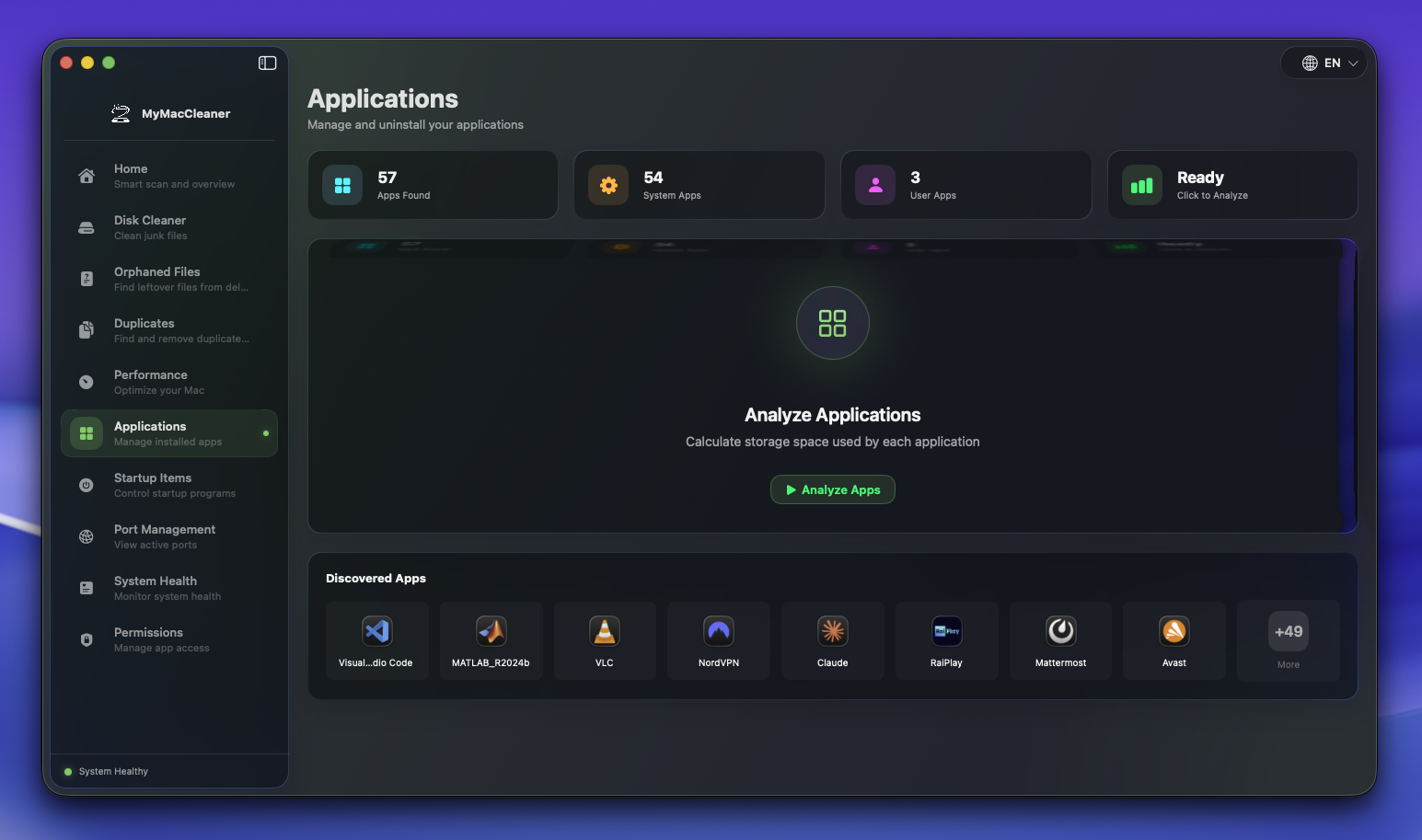 Applications Manager ready to analyze your installed apps
Overview
The Applications Manager helps you:
- View all installed applications
- Completely uninstall apps with all related files
- Check for available updates
- Manage Homebrew cask applications
Application List
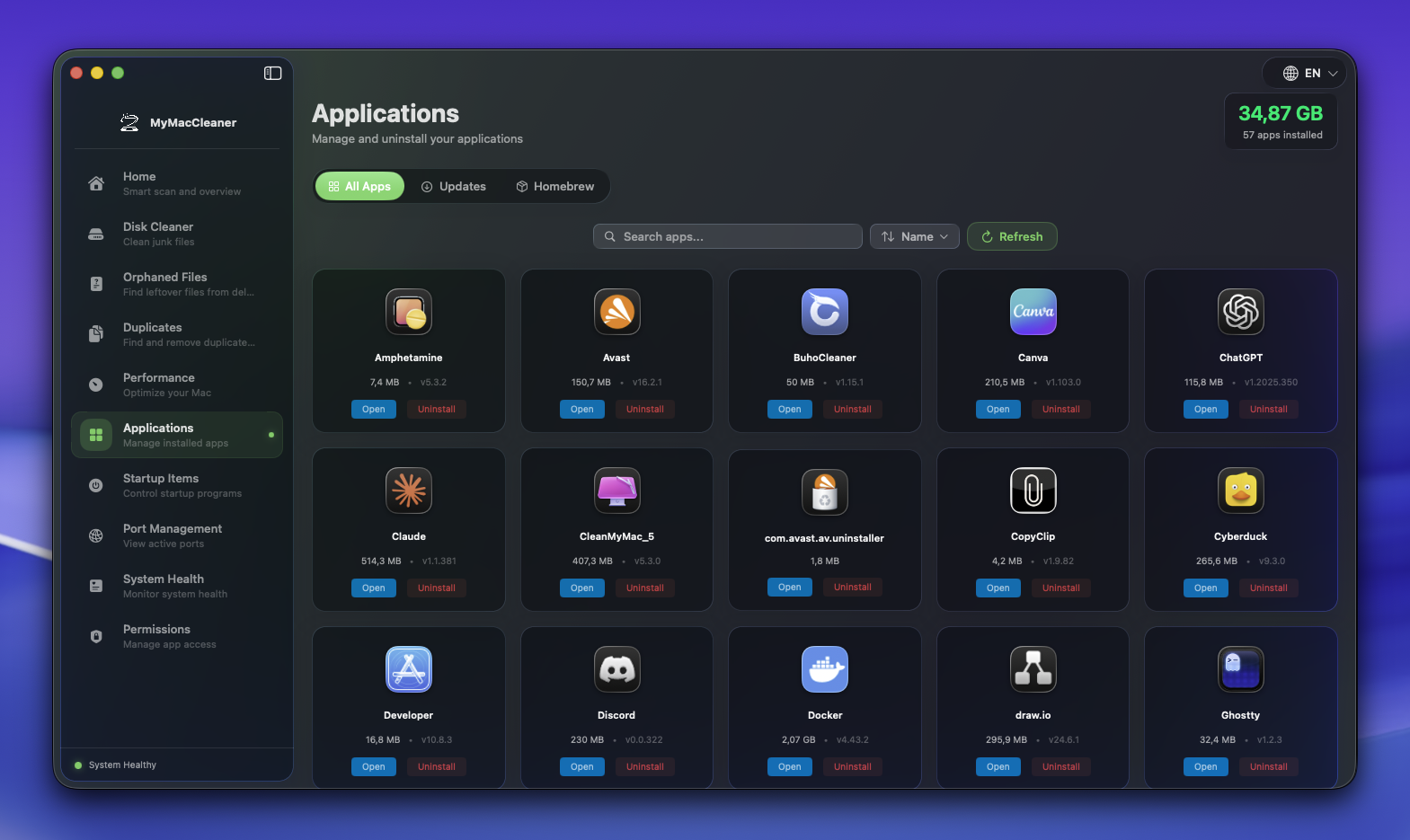 Grid view showing all installed applications with size and update status
Views
- Grid View - Visual display with app icons
- List View - Detailed table with size, version, last used
Sorting Options
| Sort By | Description |
|---|---|
| Name | Alphabetical order |
| Size | Largest apps first |
| Last Used | Recently used first |
| Install Date | Newest first |
Filters
- All Apps - Every installed application
- System Apps - Apple system applications
- User Apps - Third-party applications
- Homebrew - Apps installed via
brew cask - Has Updates - Apps with available updates
Complete Uninstaller
The Problem
When you drag an app to Trash, it leaves behind:
- Preferences files
- Cache data
- Application Support folders
- Login items
- LaunchAgents
- Containers
- Saved states
These “leftovers” accumulate over time and waste disk space.
How We Solve It
MyMacCleaner scans for all related files before uninstalling.
Leftover Locations Checked
| Location | Type |
|---|---|
~/Library/Application Support/[App] | App data |
~/Library/Preferences/[BundleID].plist | Settings |
~/Library/Caches/[BundleID] | Cache files |
~/Library/Containers/[BundleID] | Sandboxed data |
~/Library/Group Containers/*.[BundleID] | Shared data |
~/Library/Saved Application State/[BundleID].savedState | Window state |
~/Library/Cookies/[BundleID].binarycookies | Cookies |
~/Library/LaunchAgents/*[BundleID]* | Login items |
/Library/LaunchAgents/*[BundleID]* | System login items |
/Library/LaunchDaemons/*[BundleID]* | Background services |
Uninstall Process
- Select app to uninstall
- Scan for related files (automatic)
- Review found leftovers
- Confirm files to delete
- Uninstall - app and selected files removed
Safety Features
- Protected apps - System apps cannot be uninstalled
- File preview - See what will be deleted
- Selective deletion - Keep some leftovers if needed
- Recovery period - Files recoverable for 24 hours
Update Checker
Automatic Update Notifications
MyMacCleaner itself automatically checks for updates in the background using the Sparkle framework. When a new version is available, an update notification button appears next to the language switcher in the app toolbar. This seamless experience lets you update the app without interrupting your workflow - simply click the button to download and install the latest version.
Supported Update Sources
| Source | Detection Method |
|---|---|
| Mac App Store | System API |
| Sparkle Framework | Appcast.xml parsing |
| Homebrew Casks | brew outdated --cask |
How It Works
- Scans installed applications
- Checks for Sparkle feed URL in app bundle
- Queries Mac App Store for updates
- Checks Homebrew for cask updates
- Displays available updates
Update Actions
- Update - Download and install single app
- Update All - Update all apps with available updates
- Skip Version - Ignore specific update
- View Release Notes - See what’s new
Limitations
- Some apps use proprietary update systems
- Enterprise apps may require manual updates
- Beta versions not always detected
Homebrew Integration
If you use Homebrew, MyMacCleaner can:
- List all installed casks
- Show cask versions
- Check for outdated casks
- Update casks (runs
brew upgrade --cask)
Requirements
- Homebrew must be installed
- Located at
/opt/homebrew(Apple Silicon) or/usr/local(Intel)
Tips
- Uninstall unused apps - Free up space easily
- Check leftovers periodically - Use “Find Orphaned Files” feature
- Keep apps updated - Security and performance improvements
- Review before deleting - Some leftovers contain your data
Keyboard Shortcuts
| Shortcut | Action |
|---|---|
Cmd + F | Search apps |
Delete | Uninstall selected app |
Cmd + I | Show app info |
Cmd + U | Check for updates |